What Is an IPv4 Address? Format and How to Find Yours

An IPv4 address is a 32-bit number that identifies a network interface for Internet Protocol traffic. It is usually written as four decimal numbers separated by dots, such as 192.0.2.25. To see the public IPv4 address a website sees, check Loqmi’s IP tool; your device settings show its local network address.
Try this 30-second check: open Loqmi’s IP tool, then compare its result with the address in your Wi-Fi settings. Both can differ and still be correct. One is inside your network, and the other is used to reach a website.
What an IPv4 address does
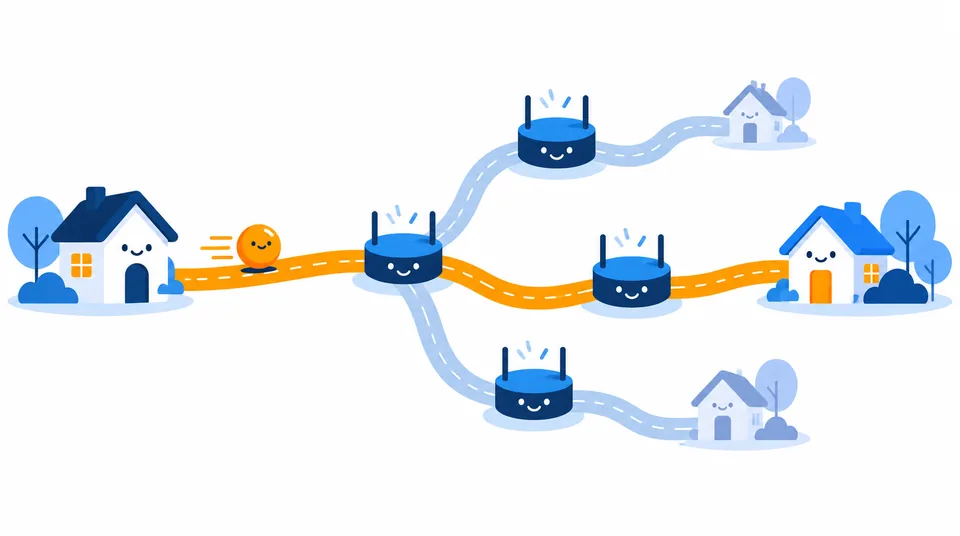
When your browser requests a page, Internet Protocol (IP) packets need source and destination addresses so routers can forward them. An address tells routers where a packet should go, and the Domain Name System (DNS) can look up an address for a domain. Routers do not need to know your coffee order.
IPv4 addresses are 32 bits, grouped into four 8-bit octets. Each octet is written in decimal from 0 to 255. This human-friendly display is specified in RFC 791.
192.0.2.25 is reserved for documentation, not a real server to visit (RFC 5737). Each decimal chunk represents eight bits. In 192.0.2.0/24, the CIDR suffix says the first 24 bits are the network prefix; the remaining bits identify addresses in the block. Networks use prefixes and subnet masks to decide whether a destination is local. RFC 4632 explains the notation. Think of the prefix as the street and the rest as the house number.
Public, private, and shared IPv4 addresses
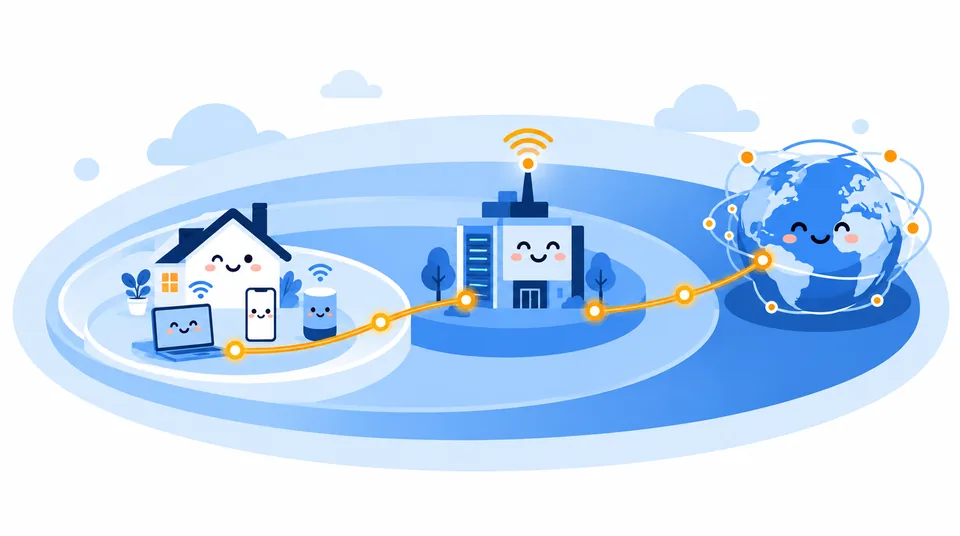
Your laptop can have a local IPv4 address while your internet connection has a different public one. A router commonly uses Network Address Translation (NAT) so devices share the public address assigned by an internet service provider (ISP). NAT basically works like a building receptionist: many people use one front desk, and replies go to the right room. That is why an IP checker can differ from your device settings.
| What you see | Typical clue | Where it applies |
|---|---|---|
| Private IPv4 | 10.x.x.x, 172.16 – 172.31.x.x, or 192.168.x.x | Inside a home, office, or other local network; not routed on the public internet |
| Public IPv4 | A routable address outside private and special-use ranges | Seen by websites and other services reached over the internet |
| Shared ISP address | Your router’s internet-side address may be in 100.64.0.0/10 | May indicate carrier-grade NAT (CGNAT), where the ISP shares public IPv4 addresses among customers |
The three private ranges come from RFC 1918. The separate 100.64.0.0/10 block is shared address space for service provider networks, not another home-private range; see RFC 6598. If your router shows an address in that shared block while Loqmi shows a different public IPv4 address, your ISP may be translating traffic upstream with CGNAT. That can affect inbound connections, but it does not by itself mean your service is broken.
Dynamic Host Configuration Protocol (DHCP) often assigns a device its local address, gateway, and DNS server. “Dynamic” means leased, not promised forever. It does not mean the address changes on every reconnect. The Internet Assigned Numbers Authority (IANA) allocates blocks to Regional Internet Registries (RIRs), which distribute them to operators and ISPs. See IANA’s number resources overview. Read more about public and private addresses and CGNAT.
IPv4 and IPv6: what changes?
IPv6 is the newer Internet Protocol version, with 128-bit addresses instead of IPv4’s 32 (RFC 8200). IPv4 uses dotted decimal; IPv6 usually uses hexadecimal groups separated by colons, such as 2001:db8::25. Both can operate on one network in a setup called dual stack, but having one does not guarantee the other is enabled or reachable. The longer IPv6 format may look messy, but those colons do precise work.
To check IPv6, use a test that reaches a service over IPv6. Loqmi reports the protocol used by your browser to reach its IP tool; if it reports IPv4, that confirms only that this page request used IPv4. Use a dedicated IPv6 check when available, or compare results from IPv4-only and IPv6-capable services. A VPN, mobile connection, or network policy can change which route the browser uses.
Quick check: open Loqmi’s IP tool to see the public address used for this visit, then compare it with the address listed in your device’s Wi-Fi details. If the local one begins with a private range, both can be correct. For connection quality, run the Loqmi speed test separately; speed does not identify which IP version carried the test.
Find your IPv4 address on each device
Choose based on the task: use the public address for a website-facing check, and the local one to connect to a printer or another device on the same Wi-Fi. On a computer, select the active Wi-Fi, Ethernet, or VPN adapter; disconnected and virtual adapters may list other addresses that do not apply to your connection.
- Windows 11: Open Settings > Network & internet > Wi-Fi > your connected network, or choose Ethernet. Read the value next to IPv4 address. In Command Prompt,
ipconfigalso lists IPv4 Address under each adapter. - macOS: Open Apple menu > System Settings > Network > the connected service > Details > TCP/IP. Read the IPv4 address. The label may say “IP address” on some Wi-Fi detail screens; use the TCP/IP panel to distinguish IPv4 from IPv6.
- Linux: Open a terminal and run
ip -4 address show. Find the active interface and the line beginninginet; ignore127.0.0.1, which loops back to the same computer. Desktop network menus vary by distribution. - Android: Open Settings > Network & internet > Internet, tap the connected Wi-Fi network or its settings icon, and look in network details for IP address. Menu names vary by maker and Android release; search Settings for “IP address” if the details screen differs.
- iPhone or iPad: Open Settings > Wi-Fi, then tap the info button beside the connected network. Under IPv4 Address, read the IP Address field. This is the local Wi-Fi address, not necessarily the public IPv4 seen by a website.
Vendor guides confirm these paths: Microsoft, Apple for Mac, Google for Android, and Apple for iPhone. Android menus vary by maker and release.
Read an IP result without jumping to conclusions
An IP address helps route replies and associate activity with a connection. A lookup may estimate a region or ISP, but an address is not a GPS coordinate or a reliable street address. ISP routing and outdated database records can make the location imprecise. See why an IP location can look wrong.
A public IPv4 address alone does not prove a device is reachable from outside: a router firewall, NAT, ISP filtering, and CGNAT affect incoming traffic. A local address does not hide you either: websites usually see the public connection address, while apps and network operators may have other identifying information. An IP is connection information, not a complete identity or security verdict.
If an address looks unfamiliar, confirm the active network and whether a VPN or mobile hotspot is running. NAT or CGNAT may explain a mismatch with your router. For more context, read what someone can infer from an IP address. An address is a clue, which is less dramatic than it looks in the movies.
Key takeaways
- An IPv4 address is a 32-bit value displayed as four dot-separated numbers.
- Your device’s local IPv4 and the public IPv4 seen by websites can both be valid.
- RFC 1918 private ranges are reused inside networks; CGNAT can add another shared layer at an ISP.
- To check your public address, use Loqmi’s IP tool; use device settings for your local address.
Frequently asked questions
Can an IPv4 address reveal my exact home address?
Usually no. An IP lookup may estimate a region or the location of an ISP network, but it does not provide a reliable street address. The result can be broad or outdated, especially when an ISP routes traffic through another city. A public IPv4 address can still be personal data in some contexts, so avoid posting it publicly if you do not need to.
Can two people have the same public IPv4 address?
Yes. A home router uses network address translation to let several devices share one public IPv4 address. Some ISPs also use carrier-grade NAT, allowing customers to share a public address. In those cases, websites may see the same public IPv4 for more than one customer or household at a given time.
Does my IPv4 address stay the same when I reconnect?
It depends on your ISP and connection. Many residential connections use a dynamically assigned address that can change after a reconnect, lease renewal, or network change, but it may also remain the same for a long time. A dynamic address is not guaranteed to change every time you restart your router.
Why does an IP location checker show the wrong city?
IP geolocation databases estimate where an address is used from network registration and measurement data; an address is not a GPS coordinate. ISPs can route traffic through a different city, and database updates can lag behind address changes. Compare more than one lookup and ask your ISP to correct an inaccurate network registration when it matters.
Sources
- RFC 791: Internet Protocol
- RFC 1918: Address Allocation for Private Internets
- RFC 8200: Internet Protocol, Version 6 (IPv6) Specification
- RFC 6598: Shared Address Space
- Microsoft: Essential Network Settings and Tasks in Windows
- Apple: Change TCP/IP settings on Mac
- Google Android Help: Connect to Wi-Fi networks
- Apple: Manage Wi-Fi settings on iPhone
Related articles

Ghost IP Address: What It Means and How to Check
Ghost IP is informal networking shorthand, not one defined address type. Learn the three common meanings and how to check which one you are seeing.

Validate IP Address: IPv4 and IPv6 Rules
Check IPv4 and IPv6 syntax, understand common validation errors, and separate a well-formed address from one that is public or reachable.

Private Network: Addresses, Access, and Safety
Understand private networks, private IP ranges, and how your devices reach the internet. Includes a quick public-IP and CGNAT check.