How to Hide My IP Address: Safe Methods Compared

To hide your IP address from websites, route your traffic through a VPN, Tor Browser, a proxy, or Apple’s iCloud Private Relay. Each one covers different traffic and puts a different operator in the path. How to hide my IP address comes down to the traffic: a VPN is the usual whole-device option, while Tor and Private Relay cover narrower, browser-focused use. Check your public IP before and after, so you know what changed.
How to hide my IP address: know what changes
Your public IP address is the network address a website normally sees when your request arrives. IP masking sends the request through another network endpoint, so the site sees that endpoint’s address instead. After connecting a VPN, run Loqmi’s WebRTC leak test to see which IPs your browser still exposes. The intermediary becomes part of the route. Your address has not vanished into a tiny internet witness-protection program.
At home, your router usually uses NAT (network address translation) so devices with private local addresses share one public address. Think of the router as a receptionist who answers every call with the same company number. The private IPv4 ranges are set aside by RFC 1918. DHCP assigns local network settings. Changing a local address or DNS server does not hide the public route a website sees.
Your ISP (internet service provider) connects your network to the internet. IANA (Internet Assigned Numbers Authority) coordinates public address blocks and delegates them to regional internet registries (RIRs); records do not map your front door. Geolocation databases estimate a region, so an IP lookup can show the wrong city. See why your IP location can be wrong.
Choose by who you want to hide from
Start by naming the observer: a website, your ISP, a shared Wi-Fi operator, or another app. “Hide all IP traffic” is really a question of coverage: one browser, one app, or the whole device. Pick the method that covers the traffic you care about.

| Method | What it covers | What to keep in mind |
|---|---|---|
| VPN app | Usually the device’s internet traffic, subject to app exclusions and setup | Websites see the VPN exit IP; your ISP sees the VPN connection, and the VPN operator handles the tunnel. |
| Tor Browser | Traffic inside Tor Browser | Websites see a Tor exit address. It can be slower or blocked; other apps still use their usual route. |
| Proxy | The configured app or browser requests | Scope and encryption depend on the proxy type and app. The proxy operator can observe the traffic it handles. |
| iCloud Private Relay | Eligible Safari traffic on supported Apple devices | Requires iCloud+ and availability; it is not a general VPN or a country-selection tool. |
| Switch networks | Traffic using the new Wi-Fi or cellular connection | The visible IP may change, but the new network operator handles your connection. |
A VPN can hide your IP address across apps, but you then trust its provider. A proxy can hide your IP address for one workflow, not the whole device. Tor gives you a separate browser route; its safety guidance recommends using Tor Browser as designed. Private Relay is for eligible Safari traffic. Compare the first two in proxy versus VPN.
A free label says nothing about who runs a service or what it logs. Before you install a VPN or proxy, check the operator, the privacy policy, the app permissions, and whether it covers the traffic you need. Do not send sensitive information through an unknown proxy.
Set up a VPN on your device
A provider’s official app is often the simplest setup. Manual settings need the VPN type, server address, and sign-in details from the service or your workplace. Opening the VPN menu alone does not create a working tunnel, no matter how official it looks. Menu labels vary with the device maker, the operating system release, or an employer-managed profile.
Windows 11
Open Settings > Network & internet > VPN > Add VPN, choose Windows (built-in), enter the supplied profile details, and save. Connect from the VPN page or the taskbar network menu. Microsoft’s instructions note that you need a VPN profile first.
macOS
For a saved VPN, open Apple menu > System Settings > VPN and turn it on. To add a manual configuration, open System Settings > Network > Action menu > Add VPN Configuration, then choose the VPN type. Apple’s setup guide lists the required details.
Linux and Ubuntu
On Ubuntu, open Activities, search Network, then click + beside VPN. Choose the type, enter details, and select Add; connect from the system menu. Other distributions or VPN types may need a provider client or NetworkManager plug-in. Ubuntu documents this setup path.
Android
Open Settings > Network & internet > VPN, choose the saved connection, and tap Connect. To add one manually, tap the add button and enter the details. If your menu looks different, search Settings for “VPN”. Manufacturers love to customize Android. Google’s guide also describes always-on VPN for supported configurations.
iPhone and iPad
For a full-device VPN, use the service’s official app or a work or school profile. For Safari, eligible iCloud+ users can turn on Private Relay under Settings > [your name] > iCloud > Private Relay. Apple also lets you adjust IP Address Location to keep a general location or use a broader country and time zone. See Apple’s Private Relay overview for availability and network-specific settings.
Free options and their limits
For a free option, start with the scope you need. Tor Browser is free and routes that browser through Tor. Private Relay is included for eligible iCloud+ subscribers, not a standalone free VPN. Free VPN plans vary, so check their limits and privacy terms.
A browser proxy changes what a site sees for configured requests, not necessarily other tabs, apps, games, or system traffic. HTTPS protects the browser-to-site connection; it does not make a proxy operator trustworthy. Incognito mode does not hide your IP: it mainly limits local history and storage. The curtains close inside the room, but the street address stays on the mailbox.
DNS (Domain Name System) changes affect name lookup; restarting a router or switching to cellular may change your address. None provides the same intermediary route as Tor or a VPN, or removes accounts, cookies, browser fingerprinting, and device location permissions. See public versus private IP addresses.
Check that the new route is active
For a quick self-test, open Loqmi’s IP checker and note the public IP, ISP, and approximate location. Connect the VPN or open Tor Browser, then reload Loqmi in that same browser. A new IP means the site sees another endpoint; it does not prove every app is covered or make you anonymous. See our VPN verification steps.
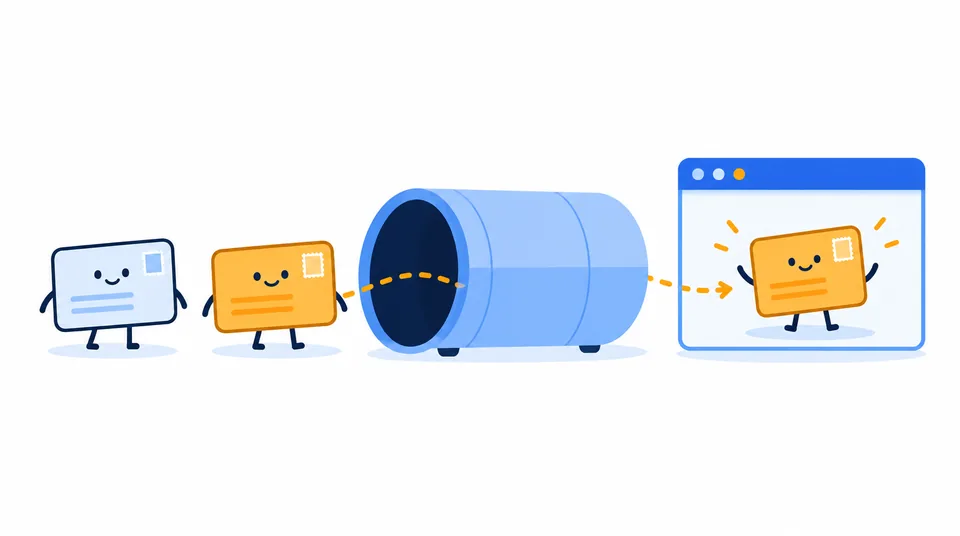
Test the specific app too. A changed browser result does not guarantee a game follows the VPN, especially if split tunneling excludes it. Compare performance separately with Loqmi’s speed test; slower does not necessarily mean exposed.
| What you see | Likely reason | What to check |
|---|---|---|
| The same IP before and after | The tunnel did not connect, the page is stale, or the browser/app bypasses it. | Reconnect, reload the page, review split tunneling, then test the app itself. |
| A new IP but your usual city | The exit address database maps to a nearby hub or broad region. | Check the ISP or network label too; geolocation is more weather forecast than pin drop. |
| Loqmi changes but another app does not | The route is scoped to a browser or the app is excluded. | Review device VPN settings and test that app while connected. |
| The connection feels slower | The relay adds a route segment or is busy. | Compare with the same device and network using the speed test, then try a nearby endpoint if available. |
A hidden IP is only one privacy layer. The service you use still matters, and an account login still tells a site who you are.
Key takeaways
- To replace the public IP websites see, route traffic through a VPN, Tor Browser, proxy, or eligible Private Relay session.
- Choose by coverage: a VPN is usually device-wide, while browser tools cover narrower traffic.
- Check the public IP before and after, then test the app you care about.
- Changing your IP does not erase accounts, cookies, fingerprints, or the intermediary’s role.
Frequently asked questions
Can I hide my IP from my internet provider?
A VPN can keep the websites you visit from being visible to your ISP inside the encrypted tunnel, but your ISP can still see that you connected to a VPN server and observe timing and data volume. The VPN operator becomes a new party you trust. Tor has a different trust model, and an ISP may recognize Tor traffic.
Does hiding my IP stop websites from identifying me?
No. A site can recognize an account you sign into, cookies, browser characteristics, payment details, or information you provide. IP masking changes one network signal. For a separate session, use a dedicated browser profile or Tor Browser and avoid accounts that identify you.
Why does a VPN show the wrong city?
A website looks up the VPN exit address in a geolocation database. That database may map the provider's address to a nearby hub or another region, so the result can look different from the server label. It describes an estimate for the address, not your device's physical location.
Is there a safe way to hide my IP for free?
Tor Browser and iCloud Private Relay for eligible iCloud+ users do not require buying a separate VPN plan, but each has limits. A free VPN may also be an option, provided you check its operator, privacy policy, permissions, and traffic limits. Avoid unknown free proxy lists; the intermediary can observe traffic it handles.
Sources
- Microsoft Support: Connect to a VPN in Windows
- Apple Support: Set up a VPN connection on Mac
- Android Help: Connect to a VPN on Android
- Ubuntu Help: Connect to a VPN
- Tor Project: Tor Browser best practices
- Apple Support: Protect your web browsing with iCloud Private Relay
- IETF: RFC 1918, Address Allocation for Private Internets
Related articles

IP Address by Email: What Headers Can Reveal
Email headers can reveal the mail servers behind a message, but usually not the sender’s home IP. Learn which Received lines matter and how to read them safely.

How to Change Your IP Address on Any Device
Choose the right way to change a public or local IP, follow device-specific steps, and verify the result without guessing.

Can Someone Find My Address From My IP?
An IP lookup can show your ISP and an approximate area, but it normally cannot reveal your street address. Check what your connection exposes and respond safely to threats.