How to Change Your IP Address on Any Device

How to change your IP address starts with one question: do you mean the public address websites see, or the private address your router hands out inside your home? Switch networks or use a VPN to change the public route. Renew DHCP or set a supplied local address to change a device’s private IP. Check your result on Loqmi’s IP tool in about 30 seconds.
Choose the IP you actually mean
Your public IP address is the internet-facing address your internet service provider (ISP), mobile carrier, or intermediary assigns. Websites see it and use it to estimate your network’s location. Your private IP address identifies one device on a local network. Your router usually hands it out.
Private IPv4 ranges reserved by RFC 1918 include 10.0.0.0/8, 172.16.0.0/12, and 192.168.0.0/16. Routers translate between local and public addresses using network address translation (NAT), like a receptionist forwarding calls to different desks. Changing a desk extension does not change the company’s outside number.
| Your goal | Address to change | Try this first |
|---|---|---|
| Change what a website sees | Public | Switch Wi-Fi/mobile network or connect through a VPN |
| Fix a device conflict on home Wi-Fi | Private | Renew its DHCP lease |
| Give a printer a stable local address | Private | Create a DHCP reservation in the router |
| Get a fixed address reachable from outside | Public | Ask the ISP about a static address and CGNAT |
How to change your IP address: pick a method
Dynamic Host Configuration Protocol (DHCP) leases addresses to devices. A renewal on your laptop or phone normally changes only its private address. Restarting a router may prompt the ISP to assign a new public one, but it cannot force that. DHCP is a polite request system, not an address vending machine.
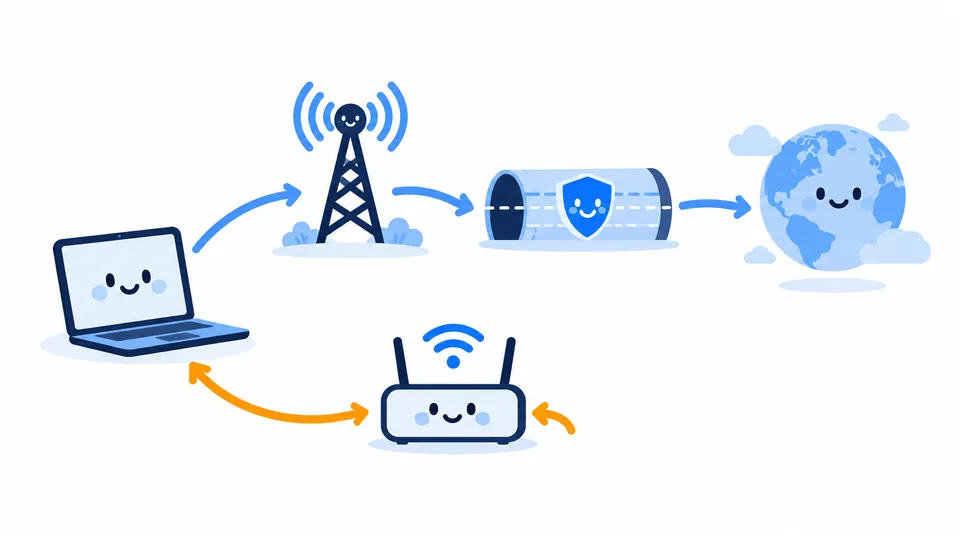
| Method | What changes | What to expect |
|---|---|---|
| Reconnect router | Possibly your home public IP | Your ISP may issue the same lease again |
| Switch Wi-Fi to mobile data | Public IP of the new network | Quick change, no added encryption by itself |
| VPN | Public IP seen by sites using the tunnel | Traffic exits through the VPN server; trust shifts to that provider |
| DHCP renewal | Device’s private IP | Useful for local connection problems, not geolocation |
| Manual/static setting | Device’s private IP | Requires correct network details and an unused address |
A proxy may route one app or browser through another server, while a device-wide VPN can cover more traffic depending on its settings. Neither changes the address the ISP assigned to your router. If you only want different DNS servers, see how to change DNS. DNS resolution and IP assignment are separate jobs.
Change the public IP websites see
Home router and ISP
Record the address at Loqmi, disconnect any VPN, then restart your modem/router. Wait for internet service to return and check again. If the address is unchanged, the ISP may have renewed the existing lease, tied it to your modem, or assigned a static address. Ask the ISP whether it can release or change the public lease. Leaving the router off longer is not a guarantee.
If your router’s WAN address differs from Loqmi’s result, another router, VPN, or carrier-grade NAT (CGNAT) may be in the path. CGNAT lets an ISP share public IPv4 addresses using 100.64.0.0/10, the range in RFC 6598. Ask the ISP about a public address if you need inbound connections or a stable endpoint.
Phone network or VPN
For a quick change on mobile, turn off Wi-Fi and use cellular data; the carrier connection has its own public route. Toggling Airplane Mode is basically hanging up and redialing: the phone may reconnect, but the carrier may hand back the same address. A VPN routes traffic through its server, so a site usually sees the VPN exit address while the tunnel is active. A VPN does not make you anonymous, because accounts, cookies, and other browser signals still exist. For a leak check, use our VPN check guide.
Change a private IP on each device
For routine use, leave IP assignment on Automatic (DHCP). Choose a manual address only when you have the subnet, gateway, and DNS details from your router or network administrator. A guess can strand the device off the network. For an always-stable printer or server, a router DHCP reservation is basically a name tag for the device, and usually easier to manage than a static address typed into every device.
Windows 11
To request a fresh local lease, open Terminal or Command Prompt and run ipconfig /release, then ipconfig /renew. To set a local address, open Settings > Network & internet > Wi-Fi (or Ethernet) > the connected network > IP assignment > Edit. Select Manual, turn on IPv4, enter the supplied IP address, subnet mask, gateway, and DNS, then save. Select Automatic (DHCP) to return to normal assignment. Microsoft recommends DHCP for most networks in its Windows network settings guide.
macOS
Open Apple menu > System Settings > Network, select Wi-Fi or Ethernet, choose Details > TCP/IP, then click Renew DHCP Lease. For a supplied fixed local address, change Configure IPv4 to Manually and enter the values provided by the network. Apple documents both options in its TCP/IP settings guide.
Linux
On Ubuntu Desktop, open the Activities overview, search for Network, then select the gear beside your connection. Open IPv4 and choose Manual to enter the address, netmask, gateway, and DNS. For a fresh lease, reconnect to the network; command-line renewal tools vary. Linux has many strengths, but one universal network-settings menu is not among them. See Ubuntu’s current network guide.
Change IP address on Android
On Pixel-style Android, open Settings > Network & internet > Internet, tap the connected Wi-Fi gear, choose Edit, expand Advanced options, and change IP settings from DHCP to Static. Enter the supplied address, gateway, prefix length, and DNS. Samsung and other makers use different paths, often Connections > Wi-Fi. The labels play hide-and-seek across brands. Google notes that options vary in its Android network settings help. This affects Wi-Fi, not cellular IP.
Change IP address on iPhone
To change IP on iPhone Wi-Fi, open Settings > Wi-Fi, tap the info button beside the connected network, then tap Configure IP. Choose Manual and enter the network-provided IP address, subnet mask, and router, or return to Automatic for DHCP. The Private Wi-Fi Address setting changes the Wi-Fi hardware identifier used on that network. It is not an IP address and does not replace your public IP. Keep it enabled unless the network administrator requires otherwise.
Verify the change and fix common misses
- Open Loqmi with VPNs and proxies disconnected; note the public IPv4/IPv6 result, ISP, and approximate location.
- Make one change, wait for the connection to return, and refresh Loqmi. If only the device’s Wi-Fi details changed, you changed its local address, not the public route.
- Compare the router’s WAN address with Loqmi. If they differ, check for a second router, active VPN, or CGNAT before changing device settings again; that comparison is much like asking the receptionist which building your packet entered.
- If you also care about performance, use Loqmi’s speed test before and after under similar conditions; a new IP alone does not prove speed improved.
| What you see | Likely reason | Next step |
|---|---|---|
| Router restart, same Loqmi IP | ISP reused the lease or the plan is static | Ask the ISP whether a new public lease is available |
| Manual setting breaks Wi-Fi | Wrong subnet, gateway, DNS, or address conflict | Return to Automatic/DHCP and use supplied values |
| VPN connected, ISP IP still visible | App may bypass the tunnel or IPv6 may follow another route | Check split tunneling and compare IPv4 and IPv6; see VPN leak checks |
| Location looks wrong | IP location databases are approximate | Check the address and ISP; read why IP location can be wrong |
IANA distributes address blocks to regional Internet registries (RIRs), which allocate them to network operators and ISPs. A home user cannot type an arbitrary public IP into a device and expect the internet to route it. IANA explains the allocation chain.
Key takeaways
- Use another network or a VPN to change the public address a website sees.
- Renew DHCP or set a supplied manual value to change a device’s private IP.
- A router restart may change the ISP address, but the ISP controls whether it does.
- Verify at Loqmi before and after. Compare WAN and public results when they do not match.
Frequently asked questions
How often does a public IP address change?
There is no universal schedule. Your ISP or mobile carrier controls its address assignment, and a dynamic address may stay the same across many reconnects or change after a network event. A static service is intended to remain stable. Check the address over time or ask your provider which type of service you have.
Can I choose a specific public IP address?
Usually not. Your ISP or carrier assigns the public address from its available network ranges; a VPN lets you choose among the exit locations it offers, but not an arbitrary address. Internet number resources are distributed through regional registries to network operators, rather than selected by individual home users.
Does changing my IP address make me anonymous?
No. A new public address can change the network identifier a site sees, but accounts, cookies, browser fingerprinting, and app permissions can still identify or link activity. A VPN also shifts trust to its operator. Treat an address change as one limited privacy step, not anonymity.
Will changing DNS change my IP address?
No. DNS looks up the address associated with a domain name; it does not assign your device's local address or change the public address websites see. A DNS change may alter which resolver handles lookups, but confirm an IP change separately with an address check.
Sources
- Microsoft Support: Essential Network Settings and Tasks in Windows
- Apple Support: Change TCP/IP settings on Mac
- Apple iPhone User Guide: Manage Wi-Fi settings on iPhone
- Google Android Help: Manage advanced network settings
- IETF RFC 1918: Address Allocation for Private Internets
- Ubuntu Help: Create a connection with a fixed IP address
- IETF RFC 6598: Shared Address Space
- IANA: Abuse Issues and IP Addresses
Related articles

IP Address by Email: What Headers Can Reveal
Email headers can reveal the mail servers behind a message, but usually not the sender’s home IP. Learn which Received lines matter and how to read them safely.

How to Hide My IP Address: Safe Methods Compared
Choose an IP masking method by who you want to hide from, set it up on your device, and check whether websites see the new route.

Can Someone Find My Address From My IP?
An IP lookup can show your ISP and an approximate area, but it normally cannot reveal your street address. Check what your connection exposes and respond safely to threats.