What Is Port Forwarding? A Clear Home Router Guide

Port forwarding is a router rule that sends one kind of incoming internet traffic to a specific device and service on your home network. You need it when someone outside has to start a connection to something at home, such as a game server. You don’t need it for ordinary browsing or streaming.
What is port forwarding?
Your router uses network address translation (NAT) to let devices with private local addresses share one internet connection. When a laptop starts a connection, the router keeps track of where its replies belong. A new inbound request has no such record. Without a rule, the router is like a hotel desk receiving a delivery with no room number, so it needs one to know which device should get it.

A port is a numbered endpoint for a service on a device, like an apartment number in a big building. A forwarding rule matches the incoming protocol and external port, then sends the traffic to a local IP address and internal port. For example, someone might connect to your public IP address on port 8080, while your router sends that request to a home server listening on port 80. The public IP gets the traffic to your router, and the rule gets it to the right service.
TCP (Transmission Control Protocol) and UDP (User Datagram Protocol) are different transport protocols, so one rule doesn’t automatically cover both. Follow the service’s documentation. SSH port forwarding instead carries traffic through an encrypted tunnel.
Think of your router as a receptionist: your home’s public IP is the street address, and a port is the extension. A rule tells the receptionist which desk should get one kind of call.
When you need a forward (and when you don’t)
The useful question is whether a remote device needs to start a connection to a service inside your home. If your device starts the connection, the router can usually send replies back without a manual rule, because it basically remembers the way home. That’s why you can browse websites without publishing a port for your browser.
| What you’re doing | Manual rule? | Why |
|---|---|---|
| Hosting a server or a private game session | Possibly | Other people may need an inbound path to the host. |
| Remote access to a home computer, camera, or NAS | Only if the service requires it | A secured VPN or vendor relay may provide access without a public listener. |
| Browsing, video calls, streaming, or joining most games | Usually no | Your device opens the connection first. |
| Connecting through a cloud relay | Usually no | The home device initiates an outbound connection to the relay. |
Forwarding can make a service reachable. It does not lower latency or increase bandwidth. After you set a rule, use Loqmi’s port checker to test whether that TCP port is reachable on your public IP. A “strict NAT” message in a game isn’t a diagnosis by itself. Some games use relays or automatic mappings, and opening unrelated ports by hand is the networking equivalent of trying every key on the keyboard.
Find the service, local IP, and public path
First, check the application’s current instructions for its listening port and whether it needs TCP, UDP, or both. The rule needs the local address of the device running that service, not the router’s address. If that device later gets a new local address, the rule can point to the wrong desk. Create a DHCP reservation in the router to keep its address stable. A reservation is the router’s way of keeping the seating chart up to date.
Find that local address here. Android menu labels vary by device, so start with the connected Wi-Fi network’s details.
- Windows 11: Start > Settings > Network & internet, select Wi-Fi and the connected network, or select Ethernet, then read IPv4 address.
- macOS: Apple menu > System Settings > Wi-Fi > Details; the connection’s IP address appears in its details.
- Ubuntu Linux: open Settings > Network or Wi-Fi, choose the active connection’s settings, or run
ip addrin Terminal and read the active interface’sinetaddress. - Android: open Settings > Network & internet > Internet and tap the connected Wi-Fi network. Samsung and other vendors use different labels, often under Connections > Wi-Fi.
- iPhone or iPad: open Settings > Wi-Fi, tap the info button beside the connected network, and look under IPv4.
For more detail, see our guide to finding a local IP address. A local IP is usually private. RFC 1918 defines the common IPv4 private ranges, which are not reachable directly across the public internet.
Now compare the router’s WAN IPv4 address with the public IPv4 shown by Loqmi’s IP tool. If they differ, there may be another router, a VPN, or carrier-grade NAT (CGNAT, where an ISP shares public IPv4 addresses among customers). Addresses in 100.64.0.0/10 are the shared range described by RFC 6598. A mismatch is a clue, not proof of CGNAT. See what CGNAT means and public versus private IP addresses.
If an ISP uses CGNAT, your router’s rule can’t control the ISP’s upstream translation. Ask your ISP whether it offers a public IPv4 address, or use a suitable relay or VPN-based access method.
Set up the router rule
- Confirm the service is running and note its required port and protocol from the official documentation.
- Reserve the target device’s local IP in the router’s DHCP settings.
- Sign in to the router and find Port Forwarding, Virtual Server, or NAT. Menu paths depend on router model and firmware. Our router sign-in guide can help you get to the settings.
- Create one narrow rule. Choose the reserved local IP, the external port people will connect to, the internal port the service listens on, and its required protocol. The external and internal ports may match, but they don’t have to.
- Save the rule, then allow the same service and protocol through the device’s firewall. The router mapping, host firewall, and running application all need to agree.
With two routers, you may need a rule on both: the upstream router forwards to the second router, which forwards to the device. Bridge mode can remove that extra layer if your equipment and ISP support it. Some router menus call an IPv6 firewall exception “port opening”. The mapping and firewall controls differ by protocol.
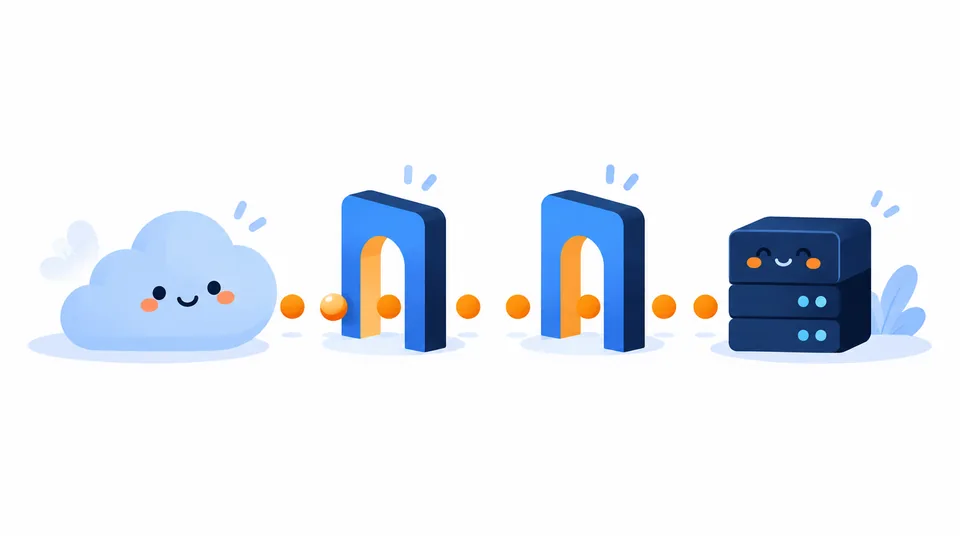
Keep the exposure narrow. Don’t forward a wide port range or use DMZ as a shortcut. A DMZ host can receive much more unsolicited traffic than one service needs. Keep the service updated, use strong authentication and encryption, and delete the rule when it’s no longer required.
Test from outside, then troubleshoot
Test from a genuinely different network. Turn off Wi-Fi on a phone and use cellular data, or ask someone elsewhere to connect. Give them your public IP address and port number, or a hostname that resolves to it. An inside test can fail while outside access works, if the router lacks NAT loopback. NAT loopback lets local devices reach a forwarded service by its public address. Asking the router to test itself is a little like asking the referee to score the match.
Loqmi shows the public IP that the test connection sees. Our speed test gives a performance baseline, not a port-reachability result. A port checker may report closed if the service isn’t running or listening.
| Symptom | Likely cause | Next check |
|---|---|---|
| Works at home, fails from outside | Wrong mapping, host firewall, stopped service, or upstream NAT | Check the service locally, verify the rule and firewall, then compare WAN and public IPs. |
| Stopped working after a router restart | Target device’s local IP changed | Reserve its address and update the rule if needed. |
| Router WAN IPv4 is private or in the shared range | Double NAT or CGNAT upstream | Check for another router; ask the ISP about a public address if the upstream NAT is theirs. |
| TCP responds, UDP does not | Wrong protocol or service-specific behavior | Check the application’s current instructions and test that protocol. |
| Outside works, home test fails | NAT loopback is unsupported | At home, use the local address; test the public address from another network. |
UPnP (Universal Plug and Play) lets applications request router mappings automatically. Review its active mapping list as well as your manual rules, and remove any unused entries. A VPN or trusted relay can be a better fit for private remote access.
Key takeaways
- A forward maps a specific inbound port and protocol to a local device and service.
- Reserve the device’s local IP; do not guess the application’s port or protocol.
- Compare router WAN IPv4 with the public address to spot an upstream NAT layer.
- Test from another network and check the app, host firewall, router, and ISP path.
- Keep the rule narrow, secure the service, and remove the mapping when finished.
Frequently asked questions
Does port forwarding change my public IP address?
No. A forwarding rule changes where matching incoming traffic goes after it reaches your router; it does not assign or change your public IP address. Your ISP assigns that address, and it may be dynamic or shared through CGNAT. If you need a stable address for people connecting to your service, ask your ISP about the available public-IP options or use dynamic DNS when appropriate.
Do I need a static public IP for port forwarding?
No. A dynamic public address can accept a forward while it is assigned to your router. The inconvenience is that its value can change, so a dynamic-DNS hostname may help people find the current address. A static public IP is useful for predictability, but it does not bypass CGNAT or guarantee that the ISP permits incoming connections.
Can two devices use the same forwarded port?
Not on the same public IP, port, and protocol at the same time: the router would have no rule to decide which device should receive that traffic. If the applications allow it, assign different external ports and map them to each device. Otherwise, use a relay or another access method designed for multiple users or devices.
Is port forwarding the same as opening a port in a firewall?
They are related but not identical. Port forwarding on an IPv4 router maps an incoming destination to a device on your local network. A device firewall separately decides whether its software accepts that traffic. With IPv6, a router may create a firewall exception without translating to a private IPv4 address, so vendor interfaces may call that port opening.
Sources
- RFC 1918: Address Allocation for Private Internets
- RFC 6598: Shared Address Space
- Google Home and Nest Help: Port forwarding or port opening
- Microsoft Support: Essential Network Settings and Tasks in Windows
- Apple User Guide: Wi-Fi settings on Mac
- Apple User Guide: Manage Wi-Fi settings on iPhone
- Ubuntu Desktop Help: Find your IP address
- Android Help: Connect to Wi-Fi networks on your Android device
Related articles
IP Address Conflict: Causes and Fixes
An IP conflict is usually a local address assigned twice. Learn how to reconnect safely, check DHCP settings, and stop the same device collision returning.

My IP Address and Port: What You Can Actually See
Your public IP identifies the network seen by websites; a port identifies a service for a particular connection. Learn what you can check and why.

NAT Firewall Explained: What It Does and Doesn't Do
A NAT firewall helps keep unsolicited inbound connections from reaching your home devices, but it is not a full security filter. Learn how it works and how to troubleshoot CGNAT and port forwarding.