IP Address Conflict: Causes and Fixes
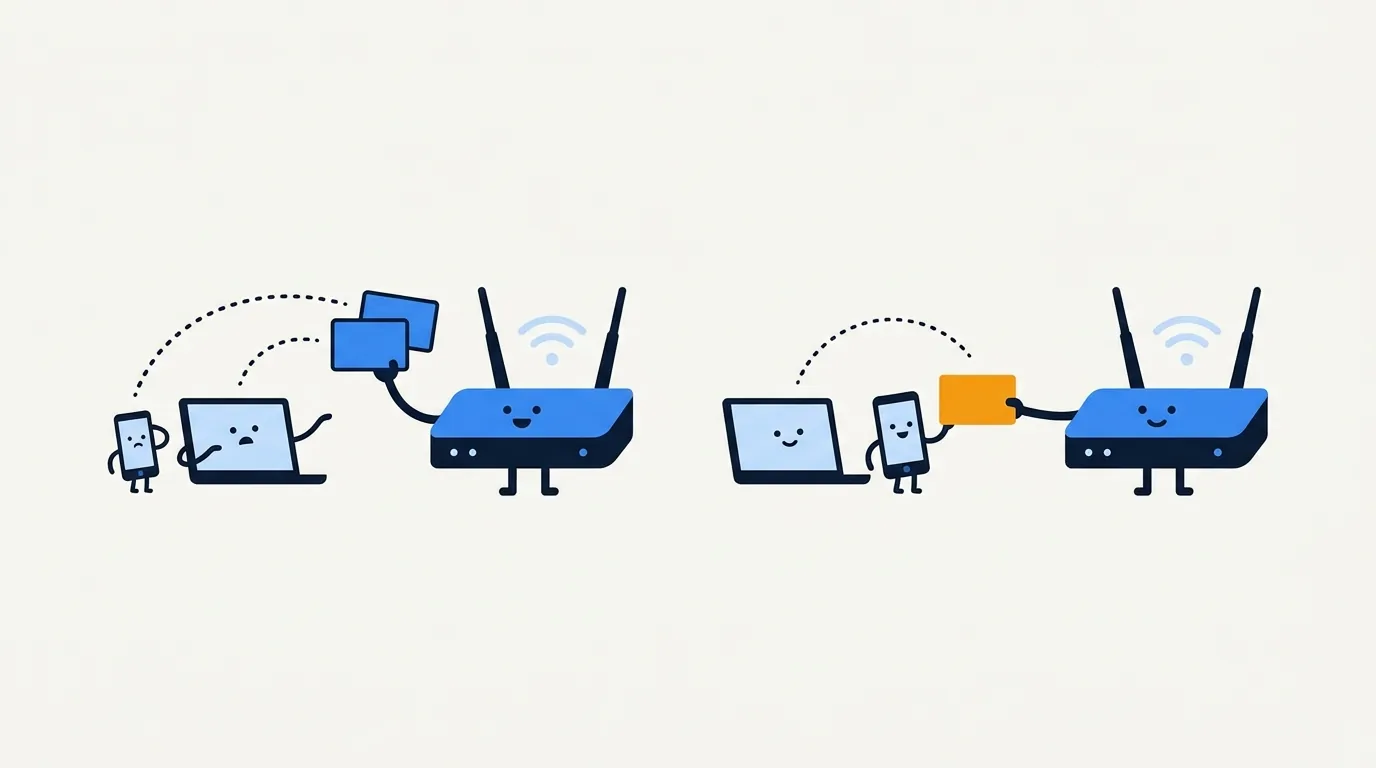
An IP address conflict happens when two devices on the same local network try to use the same address. Traffic can go to the wrong device or stop working. Reconnect the affected device so it asks for an address automatically. If the warning returns, check for a manually assigned address or overlapping router settings.
Start with one distinction. The address shown by Loqmi’s public IP checker is the internet-facing address your router uses, not the private address your laptop or phone uses at home. A local duplicate usually will not show up there, because the “duplicate IP address” warning is about that private number. If you need help finding it, see our guide to finding your local IP address.
What an IP address conflict means
On a home network, a router usually assigns private IPv4 addresses such as 192.168.1.23. RFC 1918 reserves those private ranges for internal networks. Your router’s DHCP server (Dynamic Host Configuration Protocol) lends each device an address for a set period called a lease. That keeps two devices from being handed the same one by accident.

A conflict often starts when one device has a manually configured, or static, address inside the router’s automatic DHCP pool. The router may later lend that number to a second device. Another possibility is a second router, extender, or internet-sharing computer running its own DHCP server. Two DHCP servers on one network will eventually promise the same address twice (neither one knows the other exists, which is the whole problem). A duplicate is a local problem: unrelated homes can reuse the same private number without colliding.
For IPv4, devices use ARP (Address Resolution Protocol) to find which network adapter should receive traffic for an address. If two adapters claim the same IPv4 number, other devices may update their ARP tables with alternating answers. Think of two receptionists sharing one desk extension: callers reach the wrong person at random.
Symptoms and likely causes
| What you notice | Likely cause | Best next move |
|---|---|---|
| A “same IP address” warning on one device | Static address overlaps the DHCP pool | Set the device to automatic DHCP, then reconnect |
| Several devices drop off together | Two DHCP servers or a router configuration issue | Check which router or extender is handing out addresses |
| Printer or camera disappears after a reboot | Its saved address was later leased to another device | Use a router reservation or move the static address outside the pool |
| Only one app or website fails | May be DNS, VPN, or service trouble instead | Do not assume an IP conflict; compare other devices and services |
RFC 5227 describes how IPv4 devices can probe an address before using it and detect a conflict later. Detection can still be missed or delayed. A warning is useful evidence, but silence does not prove every address is unique (it only proves nobody shouted).
Quick IP address conflict fix
- Turn Wi-Fi off and back on, or disconnect and reconnect the affected device. This asks the network for a fresh, working configuration.
- Check that its IP assignment is set to automatic/DHCP unless you deliberately manage fixed addresses.
- If it still warns, restart the affected device. Restart the router only if several devices are affected or reconnecting does not help, and first make sure you can restore any custom router settings. A restart can clear the symptom without finding the cause.
- If the same warning returns, find and correct the duplicate instead of repeatedly restarting everything.
A Windows computer can request a fresh lease from Command Prompt with ipconfig /release followed by ipconfig /renew. These commands affect the selected network connections, so save online work first. A renewal may clear a one-off stale assignment. It cannot fix a static address or a second DHCP server that keeps recreating the collision.
Need to tell a public-address problem from a local one? Compare the device’s local network details with your public IP. Loqmi’s checker cannot scan your home network or name the local device that owns an address. Use the router’s client list for that.
Set your device to automatic addressing
Labels vary: choose Automatic or DHCP where you see “IP assignment,” “Configure IPv4,” or “IP settings.”
- Windows 11: Open Settings > Network & internet. For Wi-Fi, choose Wi-Fi > Manage known networks > your network; for Ethernet, choose Ethernet. Select Edit next to IP assignment, then choose Automatic (DHCP) and Save.
- macOS: Open Apple menu > System Settings > Network > Wi-Fi > Details > TCP/IP, then choose Renew DHCP Lease. If Configure IPv4 is set manually, switch it to Using DHCP when your network is meant to assign addresses automatically.
- Android: Commonly, open Settings > Network & internet > Internet, tap the connected network’s gear or details button, then Edit or Network details. Set IP settings to DHCP. Names and edit controls vary by manufacturer and Android version.
- iPhone or iPad: Open Settings > Wi-Fi, tap the info button beside the network, then Configure IP > Automatic. If the conflict remains, choose Forget This Network on that page and join again. Have the Wi-Fi password ready before you start.
- Linux: In Network settings, open the active Wi-Fi or wired connection’s IPv4 settings and select Automatic (DHCP). The desktop path depends on the Linux distribution. On NetworkManager,
nmcli connection showlists profiles; edit the active connection’s IPv4 method to automatic rather than guessing an address.
Apple’s Mac guidance also recommends reconnecting or restarting if DHCP is already enabled. If a work or school administrator assigned your settings, ask them before changing a manual address. A fix that works at home can take a small office offline without warning.
Fix the router-side cause
Sign in to the router’s admin page or app and open its DHCP, LAN, or connected-devices section. Names differ by manufacturer, which is a polite way of saying you will have to hunt. Look at the DHCP pool (the range the router may lend) and reservations (addresses it holds for particular devices). Match entries using device names and MAC addresses, the adapter identifiers shown in the router list.
If a printer or server needs a steady address, a DHCP reservation is usually easier than typing a static address into the device, because the router keeps track of the assignment. Alternatively, set the manual address outside the DHCP pool and check that nothing else uses it. Do not copy an address from a random online example. The right subnet and gateway depend on your router.
If two routers are connected, check whether both are meant to act as routers. A second unit used only to extend Wi-Fi may need access-point or bridge mode, with its DHCP server disabled; follow that model’s manual. After changing settings, reconnect devices and check whether the warning stays gone. If the cause is unclear or the network is managed, give the router administrator the time, affected address, and device names.
What a conflict is, and isn’t
Private addresses such as 192.168.x.x, 10.x.x.x, and 172.16.x.x through 172.31.x.x are not globally unique, and many networks reuse them by design. Your public IP works differently. If your provider uses CGNAT (carrier-grade network address translation), customers can share a public IPv4 address through the ISP. That is not the same as two devices on your Wi-Fi claiming one private address.
IPv6 has its own Duplicate Address Detection procedure, defined in RFC 4862, using Neighbor Discovery rather than IPv4 ARP. A duplicate warning can therefore involve IPv6 even when IPv4 appears fine. Do not disable IPv6 as a first fix; check the router and device configuration or ask the network administrator.
A conflict warning does not tell you your public location, prove a stranger is connected, or diagnose a slow internet plan. Once the local network is stable, you can check public routing with IP lookup or measure throughput with the speed test. If a VPN is involved, check what address it exposes. That still will not reveal which home device holds a duplicate local address.
Key takeaways
- A duplicate local address can interrupt access to the internet and other devices on the same network.
- Reconnect and confirm automatic DHCP first; renewing a lease is a temporary fix if the underlying overlap remains.
- Look for manual addresses inside the DHCP pool or more than one DHCP server.
- Use router reservations for devices that need a consistent address, and keep public-IP checks separate from local troubleshooting.
Frequently asked questions
Can two people in different homes have the same IP address?
Yes. Private addresses such as 192.168.1.20 are reused in homes and offices around the world. A conflict happens when two devices share an address on the same local network or connected network segment, where they can interfere with each other. Reusing the same private number in unrelated homes is normal and does not cause a conflict.
Can an IP address conflict expose my location or personal information?
A local duplicate address is primarily a connectivity problem. It does not by itself reveal your street address or make a device publicly reachable. Check that your devices and router are trusted if an unknown device appears, but do not assume that a conflict warning means someone has accessed your network.
Why does the conflict come back after I restart the router?
A restart can refresh temporary DHCP leases without fixing the underlying overlap. Common causes are a device with a manually configured address inside the DHCP pool, two active DHCP servers, or a stale reservation. Check the router’s DHCP range and reservations, then compare them with any manual addresses configured on printers, cameras, or computers.
Does a public IP address conflict mean my ISP assigned the same address to someone else?
Usually, a device warning about another system using its address refers to a duplicate private address on your local network. Some ISPs use carrier-grade NAT, which lets multiple customers share a public IPv4 address through the provider’s network; that is a separate arrangement and is not the usual cause of a home Wi-Fi conflict.
Sources
- RFC 5227: IPv4 Address Conflict Detection
- RFC 1918: Address Allocation for Private Internets
- Microsoft: Essential network settings and tasks in Windows
- Apple: Resolve IP address conflicts on Mac
- Google: Set a DHCP IP reservation or a static IP address
- Apple: Manage Wi-Fi settings on iPhone
- Android Help: Manage network settings
- RFC 4862: IPv6 Stateless Address Autoconfiguration
Related articles
My IP Address and Port: What You Can Actually See
Your public IP identifies the network seen by websites; a port identifies a service for a particular connection. Learn what you can check and why.

NAT Firewall Explained: What It Does and Doesn't Do
A NAT firewall helps keep unsolicited inbound connections from reaching your home devices, but it is not a full security filter. Learn how it works and how to troubleshoot CGNAT and port forwarding.

Free Dynamic DNS Service: How to Choose and Set Up
A DDNS name follows your changing public IP, but it cannot bypass CGNAT or open ports. Learn how to choose a provider, configure updates, and troubleshoot access.