IP Addresses on My Network: Find Every Device
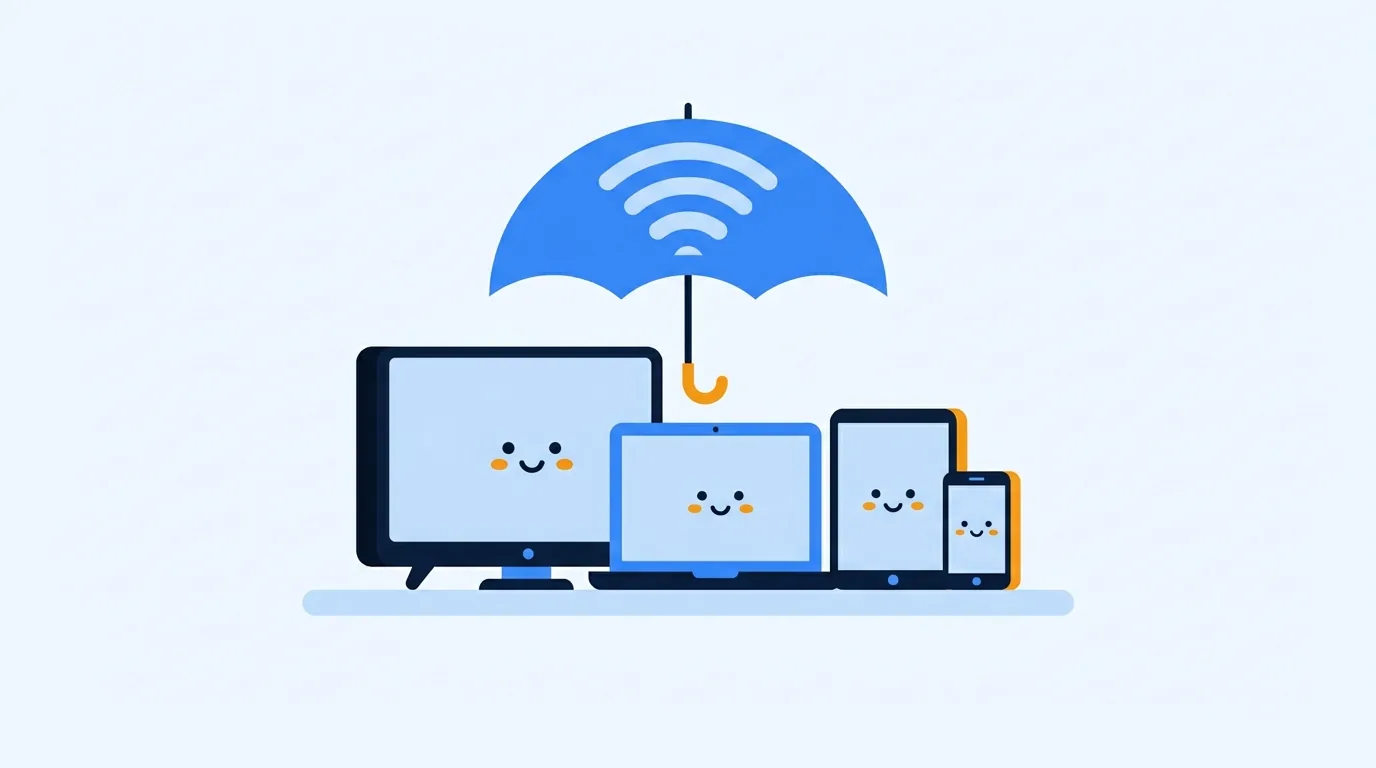
To find the IP addresses on my network, open your router or mesh system’s app and look for Connected Devices, Clients, or DHCP Client List. That screen gives the broadest view of the devices using your router. Check a device’s own Wi-Fi settings when you need to confirm one address. A quick scan from a computer helps, but it is not a complete census.
The address Loqmi shows at the IP checker is your public address, the one websites see. Phones and laptops usually have separate local addresses behind your router, and the router translates between them. So a public address lookup will not tell you how many devices are at home. Think of your router as a receptionist who answers every call with the same company number.
Find devices in your router’s list
Connect to your home network, then open the router maker’s app or its local admin page. Need the sign-in steps? See how to log into your router. Look for a page called Connected Devices, Attached Devices, Clients, Device List, or DHCP Clients. Labels vary by model and firmware, so the name on your screen may differ.

The list may show a device name, local IPv4 address, hardware (MAC) address, connection type, and status. Some screens also list offline or previously seen devices, so check for an online status before you assume a device is on the network right now. Your router is the best place to start because it sees both Wi-Fi and wired clients. What “connected” means on that screen is up to the manufacturer.
DHCP, the Dynamic Host Configuration Protocol, is the service that usually hands a device its local address and other network settings. A lease lasts for a set period and can be renewed. The router may keep a record after a device leaves, like a parking permit that outlives the car. So a lease list and a live-device list are not always the same thing.
Don’t recognize a name? Start with the boring answers: a television, printer, streaming box, smart speaker, plug, thermostat, game console, guest phone, or mesh Wi-Fi node (your toaster probably isn’t on the list, which is a small mercy). Names can be cryptic, generic, or missing. A manufacturer hint from the MAC address gives you a lead, but it does not tell you who owns the device.
What the IP of my network actually means
Each network interface can have its own local IP address. On a typical home network, the router hands out private IPv4 addresses such as 192.168.x.x, 10.x.x.x, or 172.16.x.x through 172.31.x.x. RFC 1918 reserves these ranges for private networks, so the internet cannot reach them directly.
Your router usually has a local address too, often called the default gateway. It forwards traffic between your home network and your internet provider (ISP). That is why the public IP checker shows one public address shared by every device, while the router lists a different local IP for each client. For the difference, read public vs. private IP addresses.
IPv6 adds another layer. A device may have one or more IPv6 addresses alongside its IPv4 address. Router screens and operating systems may show temporary IPv6 addresses, so an address can change even when nothing is wrong. If a printer or server needs a fixed address, use the router’s DHCP reservation feature where it exists. Do not count on a lease staying the same forever.
Check one device’s address
The device itself gives the clearest answer for its current address on the active connection. Menu names shift with OS releases and manufacturers, so treat these paths as a starting point:
- Windows 11: Open Settings > Network & internet, select Wi-Fi and your connected network, or select Ethernet. Find IPv4 address under Properties. Or open Command Prompt and run
ipconfig. - macOS: Open Apple menu > System Settings > Wi-Fi, click Details beside the connected network, and view the IP address. For wired connections, open System Settings > Network > Ethernet.
- Linux (Ubuntu desktop): Open Settings > Network or Wi-Fi, then click the gear/settings button beside the active connection. For a terminal view, run
ip address; look under the active interface. - Android: Open Settings > Network & internet > Internet, tap the connected Wi-Fi network, and inspect its details. Some phone makers move IP information under a gear icon or Advanced.
- iPhone or iPad: Open Settings > Wi-Fi, then tap the info button beside the connected network. The details page includes the local IP address.
For the exact Windows wording, check Microsoft’s network settings guide, which lists the current route. Android and Linux screens vary more by device and desktop version. Only need your own phone’s local address? Our local IP guide covers it in more detail.
Use a local scan as a second view
On Windows, arp -a in Command Prompt shows the computer’s ARP cache: local addresses it has recently matched to hardware addresses. The Microsoft command reference calls it a cache, and that is the key limitation. The command does not ask every device to introduce itself, so an idle device may be missing.
On Linux, ip neigh shows the neighbor table, and macOS also has arp -a. Both give supporting clues, and neither is a full list of the network. A discovery tool may find more active devices, but scan only networks you own or have permission to check. Sleep modes, guest-network isolation, firewalls, and multiple access points can all change the results.
Fast check: Open the router’s client list, note one device’s name and address, then compare them with that device’s Wi-Fi settings. If both match, you have confirmed the local address without installing anything.
Why lists disagree or show unknown devices
| What you see | Likely reason | What to do |
|---|---|---|
| An entry marked offline | The router remembers a past client or unexpired DHCP lease. | Refresh the page and check its status or last-seen field. |
Missing device in arp -a | Your computer has not recently communicated with it. | Use the router list or check the device directly. |
| Several addresses for one device | Wi-Fi and Ethernet are separate interfaces; IPv4 and IPv6 also differ. | Compare interface, connection, and address type. |
| Unfamiliar device name or MAC | Generic hostnames, private/randomized MAC addresses, or a household gadget. | Check your devices and router notes before changing access. |
| A device is connected but absent | It may use a guest network, another router, or a different VLAN/subnet. | Check each mesh node, access point, and guest-network list. |
A private or randomized MAC address exists to reduce tracking across Wi-Fi networks. Apple devices, for example, can use a different private address on each Wi-Fi network. The same phone may show another hardware address on a different network, and vendor labels from the router can be wrong.
If an entry still looks unfamiliar, ask household members and check the router’s live status. If you confirm access you did not authorize, change the Wi-Fi password to a strong new one and reconnect your own devices. Use the router’s security settings to pick WPA2-AES or WPA3 when your router supports them. Blocking one listed address is less reliable, because MAC addresses can change or be copied. One strange label is no proof of an intruder, so stay calm and check first.
Choose the right method
| Your goal | Start here | Keep in mind |
|---|---|---|
| See the broadest set of current home devices | Router or mesh app’s clients/device list | Some lists include offline lease records. |
| Confirm one known device’s address | That device’s active network settings | Check Wi-Fi versus cellular/Ethernet. |
| Get quick clues from a computer | ARP or neighbor table | It only reflects recently learned neighbors. |
| Compare internet-facing address | Loqmi IP checker | Shows the public view, not each local device. |
If the real problem is slow service, an unfamiliar device may not be the cause. Run Loqmi’s speed test near the router, then compare with a wired connection if you can. That shows whether the issue is Wi-Fi coverage or your internet plan from your ISP. Address changes after a reconnect are normal with DHCP. Changing an IP address is usually unnecessary just to identify devices.
Key takeaways
- Use your router’s Connected Devices or DHCP Clients view for the broadest home-network inventory.
- Check a device’s own settings to confirm its current local address.
- ARP and neighbor tables show recent local discoveries, not every device.
- Router entries can be stale or cryptically named; verify before taking action.
Frequently asked questions
Can two devices on my home network have the same IP address?
They should not share the same address on the same local network at the same time. A duplicate can happen if someone manually sets an address that the router has already assigned. The usual signs are intermittent connection problems or an address-conflict message. Set devices to automatic addressing or create a DHCP reservation in the router, rather than guessing an unused number.
Why does my phone show a different IP address on another Wi-Fi network?
A local IP address belongs to an interface on a particular network, so the router at home assigns one address and another Wi-Fi network assigns a different one. Your phone may also use mobile data instead of Wi-Fi. Check the network name and connection type before comparing addresses.
Can a network scan identify the person using an unfamiliar device?
Usually not. A scan may reveal an address, a device name, or a manufacturer inferred from its hardware address, but these clues are not proof of who owns it. Check your own phones, TVs, printers, smart-home hubs, guest devices, and mesh equipment first; ask household members before treating an entry as unauthorized.
Does a device need internet access to appear in the router list?
No. A device can be connected to the local Wi-Fi or Ethernet network while its internet connection is down, blocked, or unused. Router screens differ: some show local association, some show DHCP leases, and some label devices online only when they recently communicated. Read the status column and the list description.
Sources
- RFC 1918: Address Allocation for Private Internets
- RFC 2131: Dynamic Host Configuration Protocol
- Microsoft: Essential network settings and tasks in Windows
- Microsoft Learn: arp command
- Apple: Wi-Fi settings on Mac
- Google Android Help: Connect to Wi-Fi networks
- ASUS: Check information of devices connected to ASUS router
Related articles
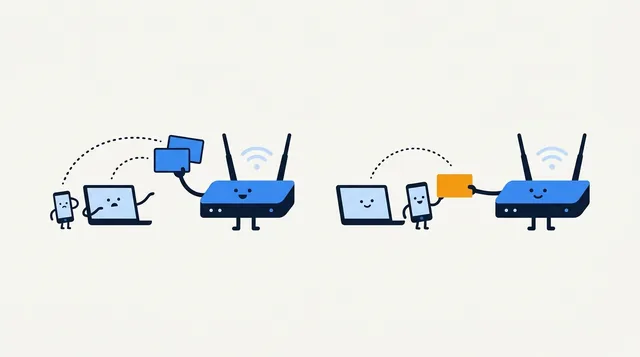
IP Address Conflict: Causes and Fixes
An IP conflict is usually a local address assigned twice. Learn how to reconnect safely, check DHCP settings, and stop the same device collision returning.

My IP Address and Port: What You Can Actually See
Your public IP identifies the network seen by websites; a port identifies a service for a particular connection. Learn what you can check and why.

NAT Firewall Explained: What It Does and Doesn't Do
A NAT firewall helps keep unsolicited inbound connections from reaching your home devices, but it is not a full security filter. Learn how it works and how to troubleshoot CGNAT and port forwarding.