What Is Packet Loss and How to Fix It

What is packet loss and how to fix it? Packet loss means some data packets never reach their destination; compare repeated tests to your router and an internet destination, then fix the first segment where loss appears. Loqmi’s speed test can show performance changes, but it cannot measure packet loss by itself.
What is packet loss and how to fix it
Your device sends calls, pages, and games as packets. Packet loss is the share of those packets that never arrives. Downloads may pause while the missing data is resent. A live call can sound clipped, because late audio is no longer useful to anyone.
Internet Protocol (IP) is best effort. It does not promise delivery, as described in RFC 1122. Think of it as a postcard service: it sends the card and hopes for the best. Transmission Control Protocol (TCP), common for web pages and file transfers, detects and retransmits missing data under RFC 9293. User Datagram Protocol (UDP), often used for interactive traffic, has no built-in recovery, so apps may add their own, as RFC 768 specifies. A fast download can still come with choppy voice. The network is not a hotel concierge.
Packet loss is not the same as speed, latency, or jitter. Speed is how much data can move in a given time. Latency is how long a packet takes to make a round trip, and jitter is how much that delay varies. Congestion can raise latency and cause drops at the same time, but one measurement cannot stand in for the others.
| What you notice | Likely clue | What to compare |
|---|---|---|
| Frozen or robotic calls, game rubber-banding | Intermittent or burst loss affecting real-time traffic | Repeated tests during the symptom, not just afterward |
| Only one room or Wi-Fi device has trouble | Weak signal, interference, or local radio congestion | Move near the router, then compare Ethernet |
| Several devices fail on wired and wireless links | Router, modem, access line, or provider path | Gateway and multiple outside destinations |
| One app or game server fails | Service, server route, or app-specific issue | Another destination and the service’s status page |
Test for loss without misreading the result
Reproduce the problem first, so you have something to compare. Note the time, the device, Wi-Fi or Ethernet, and whether someone is uploading or downloading. Run Loqmi’s browser speed test as a before-and-after snapshot, then use repeated ping tests for delivery evidence. A speed test measures throughput under its own conditions. It is not a packet-loss meter.
- Find your default gateway (usually the router address listed in your device’s network details) and ping it repeatedly. On Windows, run
ping /n 100 <gateway>. On macOS or Linux, runping -c 100 <gateway>. - Run the same kind of test against a public IP or hostname, then against the affected service if it answers ping. Keep the target and sample length the same each time.
- Repeat the test over Ethernet if you can, or stand close to the router on Wi-Fi. Test again while the problem is happening, then again during a quiet period.
- Compare the sent and received counts. For example, 2 missing replies out of 100 is 2% observed probe loss for that test. That is not a severity grade, and it does not prove that every app loses the same share.
Ping sends Internet Control Message Protocol (ICMP) echo requests; see Microsoft’s ping reference. A router may deprioritize its replies while forwarding traffic, so a timeout is a clue, not a verdict. Windows pathping /n <target> measures along the route. Microsoft’s pathping guide distinguishes loss at a router from loss on a link. Treat isolated middle-hop loss cautiously when later hops respond normally.
Locate the first failing link
Think of the route as a chain: device, local link, router, modem or fiber terminal, provider network, then the service. The first hop is your local gateway. If tests to it fail, check Wi-Fi, the device adapter, the Ethernet cable, or the router. If the gateway stays responsive but several outside destinations lose replies, investigate the modem, provider access line, or wider route. If only one service is affected, the trouble may be beyond your home network.
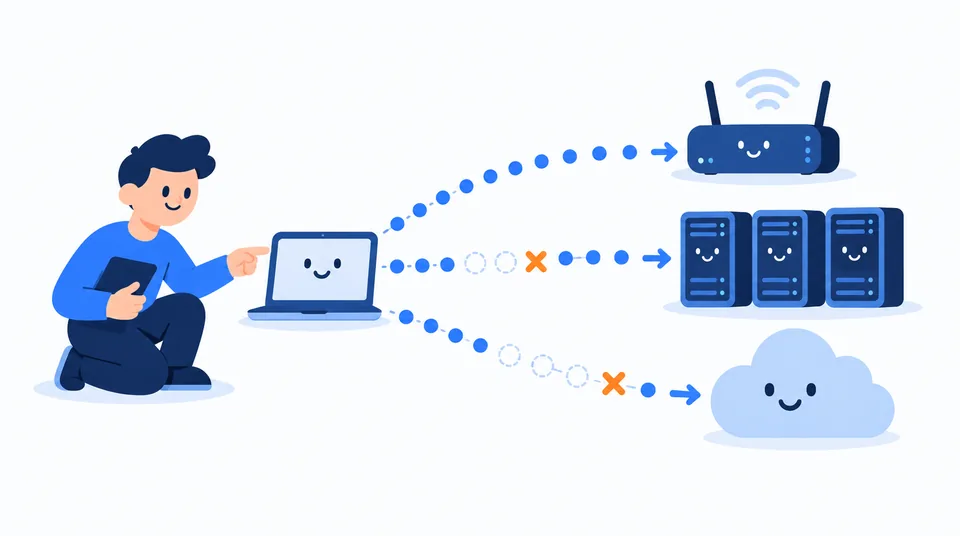
Watch the pattern, not just the percentage. Repeated loss on one device but not another points toward that device or its connection. Loss that appears only during busy uploads suggests queueing or congestion, so pause cloud backups and large transfers, then compare again. A trace can show where the path changes, but routes can be asymmetric and routers may limit diagnostic replies. Troubleshooting has a few dramatic warning lights, and some are just routers that would rather not explain themselves.
Do not change DNS as a packet-loss fix. The Domain Name System (DNS) translates names into addresses. It does not repair dropped packets on a connection that is already open. Changing your IP address, buying a faster plan, or turning on a virtual private network (VPN) is not a general fix either. A VPN can change the route to one service, but it cannot mend a loose cable or a weak Wi-Fi hop. For those separate jobs, see our guides to changing DNS servers and checking whether a VPN is working.
Fix the cause in a low-risk order
- Separate Wi-Fi from the rest. Move closer to the router and repeat the test in the affected room. If possible, use Ethernet as a control. Wi-Fi bars are basically a mood ring for radio signal: they show signal strength, not the health of the whole internet route. Reposition the router in an open, central spot, and keep it out of cabinets or behind dense furniture. If only one device is affected, reconnect Wi-Fi and check for an operating-system or network-adapter update.
- Check cables and power. Reseat Ethernet connections and try a known-good cable or another router port. Check that the modem’s provider cable is firmly connected. Don’t open provider equipment; its status lights and diagnostics are enough to start.
- Reduce load and restart once. Pause backups, large uploads, game downloads, and other heavy traffic. If the link improves, the issue may be congestion or a router struggling with queues. Restart the modem and router using their maker’s instructions, then compare the same tests again. A reboot works like a reset button for a moment, not a maintenance plan.
- Update carefully. Check the router maker’s support page for firmware for your exact model and follow its update instructions. Do not interrupt an update, and do not install firmware meant for a similar-looking model. Avoid a factory reset unless support recommends it and you have the setup details needed to reconnect.
- Escalate with evidence. If wired tests still show repeated loss to more than one outside destination, contact your internet service provider (ISP). Give them dates and times, affected devices, whether Ethernet was used, gateway and outside test results, and any modem event details they request. Ask them to check the line and service signal rather than insisting that one middle router is at fault.
When the test shows no loss
A clean ping sample does not prove that every app path is clean. Loss may be intermittent, directional, or limited to one server. Repeat the test during the failure and compare destinations. If the app reports loss, save that display and check its service status, because its traffic may take a different route from your ping.
If one website fails, check other sites and consider name resolution separately. If calls fail while browsing works, test during the call. When Wi-Fi looks responsible, our guide to logging into your router can help you find settings. Change one setting at a time and record the original value.
Key takeaways
- Packet loss means missing delivery. It is not the same as low speed or high ping.
- Compare the router, outside destinations, Wi-Fi, and Ethernet while the problem is occurring.
- A speed test is useful context but cannot rule out packet loss.
- Ignore isolated middle-hop percentages unless loss continues to the final destination and matches the app symptoms.
- Make low-risk changes one at a time; send repeated wired evidence to your ISP if loss persists.
Frequently asked questions
Can a VPN fix packet loss?
Sometimes a VPN changes the route to a particular service and that alternate path may behave better. It cannot fix loss between your device and router, a damaged cable, or a fault on the access line before the VPN endpoint. Compare the same service with and without the VPN only after checking the local connection, and do not treat a better result as proof of a permanent fix.
Is 1% packet loss bad?
There is no universal percentage that predicts how every app will feel. A brief missed probe may be transient or filtered, while bursty loss during a call or game can be noticeable even when the average is small. Repeat the same test during symptoms, compare the final destination, and use the affected app’s own quality indicators where available.
Can packet loss happen on Ethernet?
Yes. Ethernet removes Wi-Fi radio conditions from the local path, but a faulty cable, port, adapter, router, modem, provider line, or remote route can still drop packets. Testing over Ethernet is useful because it narrows the possibilities; it does not by itself prove that the ISP is responsible. Compare the gateway and more than one outside destination.
Why does packet loss appear only at night?
An evening-only pattern can point to household or provider congestion, but timing alone does not identify which. Keep the device, target, and connection method the same and record tests during both affected and quiet periods. If wired loss to several destinations follows a repeatable time pattern, share those timestamps and results with your provider.
Sources
Related articles

Bandwidth Internet Test: Measure Real-World Speed
Learn what an online bandwidth test measures, how to compare wired and Wi-Fi speeds, and what your results can—and cannot—tell you.

What Is a Good Internet Speed? A Practical Guide
A good speed depends on what your household does at the same time. Compare real service requirements, test Wi-Fi against Ethernet, and find the bottleneck before upgrading.
IP Address Conflict: Causes and Fixes
An IP conflict is usually a local address assigned twice. Learn how to reconnect safely, check DHCP settings, and stop the same device collision returning.