Bandwidth Internet Test: Measure Real-World Speed

A bandwidth internet test usually measures your connection’s real download and upload throughput to a test server. It does not measure the maximum capacity of every link on your internet path. Run it once over Ethernet and once over Wi-Fi, then compare both results with your plan. That quick check often shows whether the bottleneck is the service, your home network, or the test path.
What a bandwidth test actually measures
Bandwidth is a link’s capacity, the most data it can carry under stated conditions. Throughput is how much data really gets through during a transfer. A web speed test sends data between your device and one chosen server, then reports the download and upload rates it achieved, usually in megabits per second (Mbps). In everyday talk, “internet speed” usually means this measured throughput.
That result is a snapshot of an end-to-end path, so it reflects far more than your ISP’s equipment. It includes your device, router, modem or optical network terminal, provider network, route, and test server. The IETF’s RFC 6349 explains how path conditions, latency, packet loss, and endpoint settings affect TCP throughput.
So an online bandwidth check answers one question well: “How fast can this device exchange data with this server right now?” It cannot prove, on its own, that your whole home network or every website runs at that speed. The server is part of the measurement. Think of a bathroom scale on a wobbly floor: the number is real, but the floor is in it too.
How to run a clean bandwidth internet test
- Use one reasonably recent computer. Pause streaming, cloud backups, downloads, game updates, and VPN traffic while you test, since other activity shares the same capacity and drags the result down.
- Connect the computer to your router with Ethernet if you can, and turn off Wi-Fi on that device so the wired path gets measured. A wired test takes wireless signal and interference out of the comparison. It still includes the router and the rest of the internet path, though.
- Open Loqmi’s speed test and write down download, upload, and latency. Note whether the test was wired or Wi-Fi, which room you were in, and the time. Latency is the round-trip delay for a small exchange. It is not another name for Mbps.
- Repeat the test a few times under the same conditions, then look at the typical results instead of trusting one odd reading. Want to spot a peak-hour pattern? Repeat the test at a busy time, keeping the same device and connection method.
- Run it again over Wi-Fi in the room where the problem happens. Keep the device and server choice the same wherever the tool lets you. The gap between wired and wireless readings is useful evidence about your local Wi-Fi.
Google Fiber describes two separate tests, “speed to your home” and “speed to your device”. The first measures to the router. The second adds Wi-Fi to a device. Your provider’s app may offer a similar split. If the wired result looks healthy but a device test is much slower, check Wi-Fi before you change plans.
Quick check: Run my bandwidth test on Loqmi once near your router and once over Ethernet. A big gap is a clue, not a diagnosis. Ethernet skips Wi-Fi, but it cannot skip the rest of the route.
Read the result without over-reading it
| What you see | What it can suggest | What to check next |
|---|---|---|
| Ethernet and Wi-Fi both much lower than your plan | Possible service congestion, modem/router limit, busy test server, or a device limitation | Repeat at another time and, if available, compare a second reputable test server. Ask your provider about a persistent wired shortfall. |
| Ethernet is strong; Wi-Fi is much lower | The wireless link, distance, walls, interference, or client hardware may be limiting throughput | Test near the router, then in the trouble spot. Compare another device if you can. |
| Download is good; upload is unexpectedly weak | The plan may be asymmetric, or upstream traffic, Wi-Fi, or a provider-side issue may be involved | Check your plan’s upload rate and pause cloud backups or camera uploads before retesting. |
| Fast test result, but calls or games still feel laggy | Latency variation, packet loss, or congestion under load can matter more than peak throughput | Compare latency when idle and while someone uploads or downloads. See our guide to packet loss and how to fix it. |
| Only one app or website is slow | The destination server, its route, or the app itself may be the limiting factor | Try a different service. A general speed test cannot certify the performance of every destination. |
A result below the plan’s headline number does not prove the ISP is at fault. Plans often advertise an “up to” rate, and the test path includes equipment and networks beyond the provider’s access link. One excellent result cannot prove the connection will stay that fast.
Why a download can look slower than the test
Internet plans and speed tests usually count bits per second, while file managers often count bytes per second. A byte holds eight bits, so divide a Mbps result by eight for a rough theoretical megabytes-per-second (MB/s) figure.
Worked example: A test result of 240 Mbps works out to 30 MB/s before protocol overhead and other limits. If a download shows about 27 MB/s, that is not obviously wrong. The file server, disk, application, and network overhead can all lower the displayed rate. The exact loss varies, so don’t treat any fixed overhead percentage as a promise.
TCP (Transmission Control Protocol) breaks data into packets, keeps track of delivery, and resends anything that goes missing. Those checks make transfers reliable, but they cost time and capacity. The Internet Engineering Task Force’s throughput framework notes that TCP performance depends on factors such as round-trip time, packet loss, and the sending and receiving hosts. A simple browser test cannot isolate each one, which is like a mechanic guessing the engine problem from the parking lot.
Also keep speed and data allowance apart. Mbps measures a rate, like how fast water leaves a tap. A monthly data cap measures a volume, usually shown in GB or TB. A faster connection moves more data in less time, but the test cannot tell you how much monthly data you have left.
If your result stays low, narrow down the cause
Change one thing at a time. Start by repeating the wired test with background traffic paused. Then compare wired and Wi-Fi on the same device. If the wired result stays low at different times, save the dates, times, test server if shown, and download/upload readings before you call your ISP. That record beats “the internet is slow,” which is accurate but not much help to anyone trying to fix it.
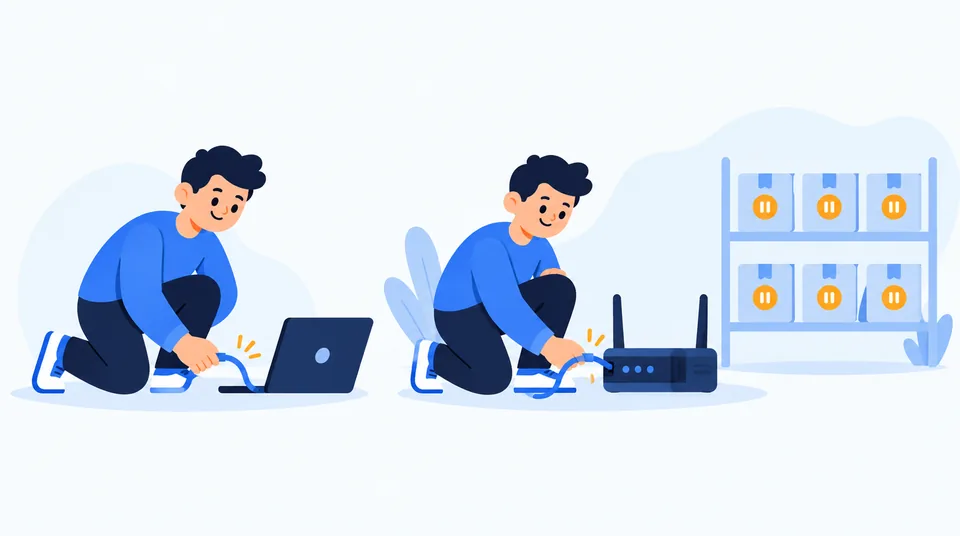
If only Wi-Fi suffers, move closer to the router and test in the affected room. Check whether other devices are using the connection, then restart the router if the problem is new. Router menus differ by manufacturer, so follow the maker’s current instructions instead of hunting for a universal menu path. A local wireless bottleneck doesn’t automatically mean you need a faster ISP plan.
If speeds look good but pages stall before they load, the problem may be name resolution, not throughput. DNS (Domain Name System) is basically the internet’s phone book, turning domain names into addresses. Looking up a number is a separate step from moving a large file. Our guide explains what DNS is and how it works. For a wider view of connection quality, compare download and upload with latency and packet loss instead of chasing one headline number.
Finally, the test server matters. A faraway or busy server can give a different reading from a nearby one, and neither may match the route to a particular app or game. Google’s support documentation also notes that results vary with the location of both user and server. If two tests disagree, read it as a clue about the route or method. It is not proof that one tool is lying.
Key takeaways
- A web test measures real throughput on one device-to-server path, at that moment.
- Compare wired and Wi-Fi readings to see whether wireless may be the bottleneck.
- Keep test conditions consistent and use repeated results to spot patterns.
- Use Mbps for connection rates and divide by eight for a rough MB/s comparison.
- Latency, packet loss, server load, and the destination can shape your experience more than peak throughput does.
Frequently asked questions
Can a speed test prove that my ISP is throttling me?
No. One slow result can come from Wi-Fi, your device, local traffic, the route, or the test server. Repeat wired tests at different times and compare more than one test service. If only a particular kind of service seems slow, keep notes and ask your provider to investigate; the test alone cannot establish intentional traffic shaping.
Should I use a phone or a computer for a bandwidth test?
A modern computer connected by Ethernet is usually the clearest starting point because it removes Wi-Fi from the measurement. A phone is useful for checking the real wireless experience in the room where you use it. Results from different devices are not directly comparable unless their connection method and test conditions are similar.
Why do two speed test websites show different numbers?
They may use different server locations, test durations, connection methods, or measurement techniques. Your route and network load can also change between runs. Compare repeated results made under similar conditions, and use a second server to check whether a low result is specific to one destination.
When should I contact my internet provider about a low result?
Contact your provider when repeated wired tests remain well below the service level you expect, especially across different times and more than one test server. Share the dates, times, device and connection method, and upload and download results. That gives support a useful starting point for checking the line or a local outage.
Sources
Related articles

What Is Packet Loss and How to Fix It
Find out whether packet loss starts on Wi-Fi, at your router, or beyond it. Use repeatable tests to choose a fix and give your ISP useful evidence.

What Is a Good Internet Speed? A Practical Guide
A good speed depends on what your household does at the same time. Compare real service requirements, test Wi-Fi against Ethernet, and find the bottleneck before upgrading.
IP Address Conflict: Causes and Fixes
An IP conflict is usually a local address assigned twice. Learn how to reconnect safely, check DHCP settings, and stop the same device collision returning.